












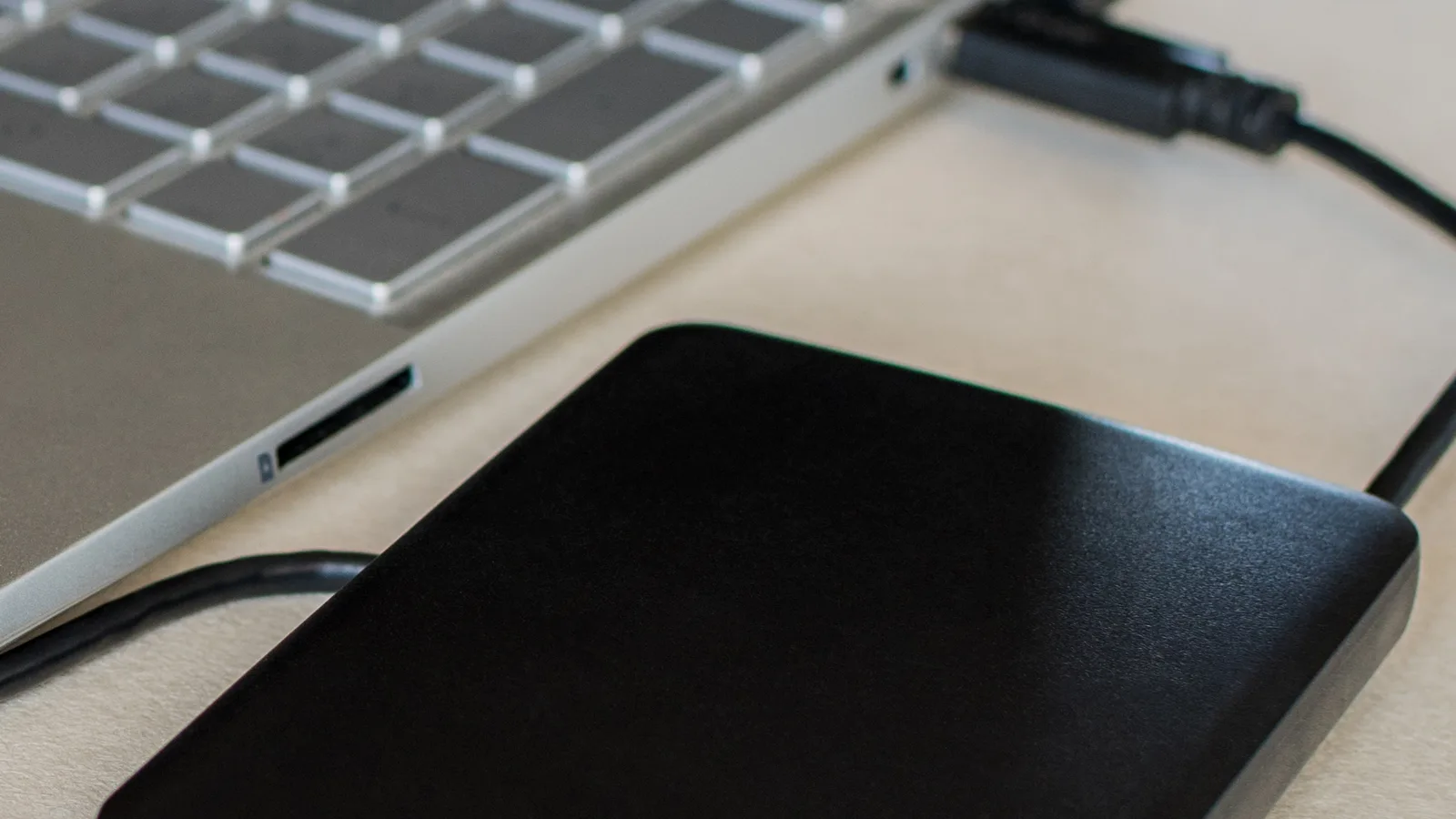
The federal government's plain-language rule for backups is three copies of every important file, on two different kinds of storage, with one copy kept somewhere other than your home or office. That is the 3-2-1 rule as laid out in Data Backup Options, a paper produced for US-CERT, the predecessor of today's Cybersecurity and Infrastructure Security Agency (CISA). The paper says it applies to everyone from home users to security professionals, and that a single backup file may not be enough. For a home office, where client files, tax records and years of photos often live on one laptop, here is what each part of the rule protects against and how to set it up with the tools already built into a Mac or a Windows PC.
What each copy is for
The three copies are the working file on your computer plus two backups. Each guards against a different kind of loss.
- Drive failure or theft. CISA's paper points out that a backup kept on the same internal drive as the original is lost along with it if that drive is damaged, corrupted or stolen. A second device is the minimum.
- Ransomware. NIST's Small Business Cybersecurity Corner describes ransomware as an attack that encrypts an organization's data and demands payment to restore access, and notes it can spread from one computer to others on the same network. A backup the malware can reach can be encrypted too.
- Fire, flood and burglary. A drive sitting next to the computer burns or walks out the door with it. CISA's paper says remote backups help in worst cases such as natural disasters and malware damage to local devices.
The two media types matter for the same reason: different storage fails in different ways. CISA lists external hard drives as prone to physical damage, flash media as easy to lose, and cloud storage as dependent on an internet connection and on a provider's practices you cannot see.
Why one copy stays disconnected
The FTC's small business guidance on ransomware tells owners to back up regularly by saving important files to a drive or server that is not connected to their network. NIST's tips for preparing for ransomware say backups should be kept isolated so the attack cannot easily spread to them. CISA's paper adds a related warning: a rolling backup, which automatically overwrites older copies with the newest versions, can carry corruption or malware from the original files straight into the backup. A synced cloud folder behaves the same way, mirroring changes as they happen. That is why the rule calls for at least one copy that is unplugged or offsite most of the time.
Setting it up on a Mac
Apple's built-in tool is Time Machine. Apple's support page says to use an external drive with at least twice the storage of the Mac (a 2TB drive for a Mac with 1TB), and to use that drive only for Time Machine. In macOS Ventura 13 or later, the steps are System Settings, then General, then Time Machine, then Add Backup Disk. Apple offers an Encrypt Backup option during setup, which asks for a password you will need to restore files later.
Once set up, Time Machine keeps hourly backups for the past 24 hours, daily backups for the past month and weekly backups for older months, deleting the oldest when the drive fills. If you unplug the drive, Apple says Time Machine resumes on schedule when you reconnect it, and that you should eject the drive or shut down the Mac before disconnecting. Apple also notes that Time Machine can back up to more than one drive, which is one way to keep a second disk stored away from the house and rotate it in.
Setting it up on Windows
Windows has two built-in tools that cover different copies. File History, which Microsoft documents for Windows 11 and Windows 10, saves versions of the files in your libraries (Documents, Pictures, Videos, Music and the Desktop) to an external drive or a network location. You turn it on in Control Panel under System and Security, then Save backup copies of your files with File History, and choose the drive. The Windows Backup app syncs the folders you choose, plus many settings and installed apps, to the cloud storage tied to a personal Microsoft account, which Microsoft says includes 5GB free. Microsoft notes that Windows Backup is built for personal accounts and does not work with work or school accounts. Microsoft also says Windows 10 stopped receiving free security updates on October 14, 2025.
How often, and how to know it works
None of these agencies sets a fixed schedule. The FTC says to back up regularly, and Time Machine and File History run automatically once a drive is attached. The interval that fits is set by how much work you could afford to redo since the last copy, and that applies to the offline copy as much as to the automatic one.
NIST's ransomware tips say to plan, carry out and regularly test both your backups and your ability to restore from them. A backup that has never been restored is untested. On a Mac, Apple says a Time Machine backup can restore some or all files to the same Mac or a different one. On Windows, Microsoft's File History instructions include a Restore to option that puts a recovered file in a different location, so it does not overwrite the current version, which Microsoft warns cannot be undone.
To run a test this week, pick one ordinary file, restore last week's version of it to a new folder from each backup you keep, and open it. If either copy fails to open, fix that backup before you need it.
Sources
- CISA (US-CERT): Data Backup Options
- NIST Small Business Cybersecurity Corner: Ransomware
- NIST: Tips and Tactics, Preparing Your Organization for Ransomware Attacks
- Federal Trade Commission: Cybersecurity for Small Business, Ransomware
- Apple Support: Back up your Mac with Time Machine
- Microsoft Support: Backup and restore with File History
- Microsoft Support: Back up and restore with Windows Backup
Loading comments…